Thursday, August 12, 2010

Excel Template

Time and again, we create new Excel files with VBA, and end up rewriting our prized VBA codes (or copying pasting at best) that could be reused. Some of us have our own sleeveful of Excel files containing VBA codes.

There are some good ways of organizing (and growing) them. The most obvious way would be something like in Word... "normal.dot". In Excel unfortunately, such a thing does not exist. But we could do something close. Make a template file that could be used as a standard from the default "New Workbook" dialog.

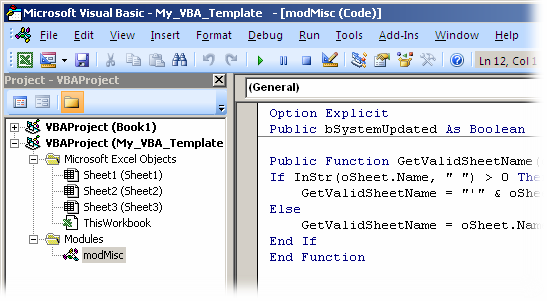
Write the VBA codes in a new Excel file and save it as a Template, say "My_VBA_Template". The VBA code could be written anywhere as usual - as new modules or written as workbook/worksheet events.
Remember to save the file as a "Macro-enabled Template (.xltm)". You can now place the file in any of the following locations depending on the usage:
  1. C:\Program Files\Microsoft Office\Office12\XLSTART\  -or-
  2. C:\Documents and Settings\<user>\Application Data\Microsoft\Templates\
Now start Excel normally and open a new workbook. Choose the "My Templates..." from the access panel.

From here, choose the your template "My_VBA_Template".

A new file with the embedded macros would be created "My_VBA_Template1" (just like "Book1" normally).

For all future uses, a good thing is that, your templete would appear in the Recent Templates section and hence much easier to access.

Happy Excelling!

Wednesday, August 4, 2010

Unlock a VBA password protected Excel file

Ever felt the need to open a VBA protected excel file... maybe one of your old files that contained an excellent routine! How do you come out of that pain?

Important: This article is for educational purposes. Try this method for opening ONLY your own files, as I did too!

So how does Excel store the file contents - cell data including formulas and formats, conditional formatting, VBA code, etc. etc. Lets investigate. Create a new Excel file MyTest.xlsm and enter some dummy test data in the first sheet. Add some formulas and conditional formatting (if you want to really understand the details).
Let us now see how excel stores this data in the file. Open the file in notepad or a hex editor. Did you notice the first 2 characters? "PK". So Excel compresses its file contents. Now we know why there is not much difference if you compress an Office 2007 file.
Lets look into the compressed contents. Rename the file extension from .xlsm to .zip
Open the MyFile.zip file. Wow! its an extensive structure with xml files to store the workbook, worksheets, calculations, sharedstrings, etc.
This is how the XML of the Sheet1 looks
Lets explore more. Lets go back to our original file and add some VBA code to it.
Add a password and protect the VBA code.
Save the file and redo the same steps as earlier to open the xml file structure. We now have another XML file called vbaProject.bin. This is the file that I need to recover. Lets investigate further. Open this file in a Hex Editor (there are lots of free ones out there... the one I use is Hex Editor Neo at http://www.hhdsoftware.com/Products/home/hex-editor-free.html).
Search for the keyword "DPB" in the content. Remember to find it just above "[Host Extender Info]".
Once found, replace the string "DPB" to "DBx" and save the file. Now replace the edited "vbaProject.bin" file and place it back into the compressed file collection (replace with the old one). Rename the compressed file back to ".xlsm".

Try to open the file in Excel. It gives an error saying that the file contains an invalid key DBx. Hit Yes and proceed. The file opens. So far good. Now go to the VBA editor.
Next it gives another error "Unexpected Error". Proceed again by hittng OK
VBA Editor opens. Now try to open the module code. Again the "Unexpected Error". Dont lose heart... we are just there. Save the file and close it. We are all set. Your file is as good as new without the VBA password. Go check for yourself!

So Excel may NOT be encrypting the VBA file after all, rather it is only setting a flag to lock the VBA content. This is evident because we can still see the code in the vbaProject.bin file (that we had written in the VBA earlier).
Some more interesting bits. Check how Excel stores its file contents. Look into the file sharedStrings.xml. It stores the strings at a global level, not in the sheet itself. Also look into how it stores the formulas and formatting. Try out things like like dragging a cell content (like Area 1) into 5 cells (producing Area 1, Area 2, Area 3...) and see how it stores the values... using ranges.

That also says that, it may be better to access Excel data directly from these XML files rather than through the Excel application model. We could have much more control and simplified logic for storing (for instance in database), transporting (eg client machine to server), opening and displaying simple content. Many possibilities here...

Well, I was pretty pleased that today I learned something new... and an unlocked VBA code.
Saturday, March 27, 2010

Business of Software Conference 2008 (Part 2)

Excerpts from lecture by Dharmesh Shah, OnStartups.com
  • At startup, your idea may "suck"... get started!
  • Say "NO" to venture capital
  • Target liquidity
  • You don’t have to go out there and market (broadcast) to get people interested!
  • Real EV of raising venture capital is high (add difficulty in getting one)
  • Nobody reads Business plans... rather write a blog!
  • All startups should be embarrassed about their product when it goes out into the market... If you are not embarrassed, you have waited too long!!
  • Don't depend on advertising to sell your product
  • You are not gonna be able to get the "pricing" right anyway... so just pick one
  • Starting as early as possible and "charge" as often as possible
  • SAAS - You are now the customer
  • COCA - Cost of customer acquisition
    • = Money spent to get a new customer onboard
    • = (Total cost of sales + marketing/Number of new customers) - lifetime value of the customer (LTV)
    • Therefore, one of the biggest success factors - lower attrition rate
  • CHI - Customer Happiness Index - Probability of customer that he will stay next month
    • Above can be correlated with (and hence should be monitored closely)
      • Did the customer use the software, usage patterns (e.g. customers who use "a" feature are 4 times more likely to stay than who don’t
      • Track usage data - by feature... who recommend it + which customers used it and how many left + who approved it
  • Don’t do "partnerships"
  • Go to the market even before you have written the first line of code
  • Manage Risks - technology risks, market risks
  • Try and reduce market risk as early as possible
  • "Pay per click" is a morphine drip

Business of Software Conference 2008

Excerpts from lecture by Jason Fried, 37 Signals (the Back Pack guy)
  • Maintain "momentum"... do small projects
  • Build the "real" thing (UI)... avoid abstraction (unwanted documentation)
  • Do what works now! Optimize for now... No decision is permanent
  • Avoid words like - Need, Can't, Easy, Everyone, Nobody
  • Have Uninterrupted stretch of time for productive work
  • Focus on what is NOT going to change - Speed, Simplicity, Clarity, Ease of use, Reliability, Uptime
  • Keep questioning... always and all sorts
  • Focus on "easy" ones "first"

Wednesday, March 3, 2010

Sharing Agile experiences of a Scrummer

Jean Tabaka has recently compiled a list of tips and tricks to scrum better. I thought it is worthwhile to share it. We may know already know most of them, but penning them down into a list makes it interesting! And, alomg the way, it has some great links too.

Here is the article.

Tuesday, February 16, 2010

Karaoke - Bade Achche Lagte Hai

For long I have been searching the karaoke version of this song. Finally, here's the link to
Bade Achche Lagte Hain – Amit Kumar – SD Burman – BALIKA BADHU.

Friday, February 5, 2010

Flash as a UI: Integration with HDP Applications

As posted earlier, here is an application of the flash Dial component used from within a C# app. During this exercise, I have learnt a few good things. Flash can easily be used as a front end for a traditional application written in .NET or Java.

Flash, over the years have mastered the art of screen displaying content. It has excellent layout placement, UI precision as well as rendering capabilities. This, along with the great filters makes it a ideal for UI. On the other hand, languages like C#, VB, VB6 and Java are very strong from programming point of view. Memory handling, disk and shell interaction, interaction with the OS and now more recently web services are better handled by heavy duty developer platforms (HDP). But the HDP have always lacked (though we have probably not acknowledged) pretty graphical UI. A complex user interface does not have to, NOT look "chick".

The midway, Flash UI for a HDP App, has a lot of potential in store. A probable contender is AIR, but would lose out owing to the fact that legacy applications are still on the HDP (the developers lobby!). Also, AIR may be (at least initially) viewed as, not sturdy enough for HD applications. Lets look at the "Flash UI for a HDP App" approach.

The problem has always been the interaction of the HDP with flash. The common (unwilling crime) has been taking the "SetVariable" route. Here we update a variable from outside Flash and wait for it to detect the change asynchronously. The "ChangeVariable event is fired and all the processing is done within Flash without an active feedback back to the HDP app. This seems more of a HACK rather than a solution.


Long awaited, there is now a mechanism to run an operation synchronously from a HDP app to flash and back. It is done through "ExternalInterface" and can be smoothly called from HDP as well as javascript.


- or -


Here is an example created to demonstrate the above in .NET using an earlier created Flash component. Google out "ExternalInterface Flash Samples" for understanding the concept.


Another big advantage of using a Flash UI is, that it is usable both in desktop applications as well as web app. You develop a single UI... and it is deployable both on desktop and web; and looks and interacts exactly the same way. Sometime back, I came across a paper (pdf report) done around this area (citation invited)(* updated below) that talks about Flash as a front end. Go ahead, indulge... You can even afford to keep f-in-box aside and start on your own!

To sum up, Flash needs to be seriously tried as a front-end for complex, enterprise "user interaction intensive" applications like ERP, industrial automation, simulation, etc. I foresee frameworks, interface layers and design templates in the Open Source being developed to support and enhance such initiatives. A Flash UI could give a product company that small winning oomph over competition.

*Updated on 10th Feb 2010: Here is the pdf mentioned in the post above. It was a March 2003 paper taking about "Macromedia Flash and VB: A Potent Combination".